How Does an iPhone Screen Work?
An iPhone screen has two main jobs: displaying images and detecting touch. The display system controls millions of pixels to produce what you see; the touch system uses a separate electrical process to detect where a finger makes contact. These two systems work together but operate independently - which is why a replacement screen can display a perfect image and still have a touch problem, or the reverse.
This guide is for repair businesses, wholesale buyers, distributors and technicians who need more than a surface-level explanation. Understanding how a screen actually works - how it produces light, how it senses a finger, and how signals travel between components - gives you a concrete basis for evaluating replacement-screen quality instead of relying on labels alone.
How Does an iPhone Screen Work? A Quick Answer?
At a basic level, the process looks like this:
Device generates visual data
→ display signal reaches the screen
→ display driver controls pixels
→ LCD or OLED produces the image
→ touch sensor detects a finger
→ touch controller calculates coordinates
→ software converts input into an action
Two things are worth noting here. First, image generation and touch detection run on separate signal paths, even though they share the same physical assembly. Second, "the screen works" is really shorthand for several different subsystems all working correctly at once.

The Two Main Jobs of an iPhone Screen
Displaying Images
The display system's job is to take a video signal from the logic board and turn it into a visible image, pixel by pixel, using either LCD or OLED technology.
Detecting Touch
The touch system's job is to sense where and how a finger contacts the screen, and pass that information back to the device as usable input - a tap, a swipe, a pinch.
Why Display and Touch Must Be Tested Separately?
Because these are two different systems with two different failure modes, a screen passing one test tells you nothing about the other. A screen can display a clean, bright image while a corner is unresponsive to touch. A screen can respond perfectly to touch while showing dead pixels or an uneven brightness pattern. For a B2B buyer, this is the practical reason a quality check needs to run through both systems independently rather than stopping once the display lights up.
How Pixels Create Images and Color?
Every image on an iPhone screen is built from a grid of pixels, and each pixel is made up of red, green and blue subpixels. By varying the intensity of each subpixel, the screen can produce the full range of colors in the image. Resolution refers to how many pixels make up that grid, and refresh rate refers to how often the image updates per second.
What matters for replacement-screen buyers is that brightness and color accuracy aren't fixed properties of "a screen" in the abstract - they depend on the panel itself, the driver components controlling it, and how well the unit has been calibrated during manufacturing. Two screens using the same underlying technology can still look noticeably different side by side.

How an LCD iPhone Screen Produces an Image?
LCD screens produce an image in stages:
- A backlight provides the light source behind the panel.
- A liquid crystal layer controls how much of that light passes through at each point.
- RGB subpixels filter the light into red, green and blue components.
- Display driver components control the voltage applied to each pixel.
- All pixels combine to form the complete image.
LCD pixels don't produce their own light - they only control how much backlight passes through. This means the backlight itself becomes a quality variable: backlight uniformity, overall brightness, potential light leakage at the edges, and color temperature consistency all affect how the finished screen looks. During sample testing, these are the specific things to check on an LCD replacement screen rather than just confirming the screen turns on.

How an OLED iPhone Screen Produces an Image?
OLED screens work differently:
- Each OLED pixel emits its own light - there's no separate backlight layer.
- Because pixels are self-emissive, they don't require traditional LCD backlighting.
- Each pixel can be controlled independently, including being switched off completely.
- RGB subpixels combine to produce color, the same basic principle as LCD, just without the backlight step.
- Driver components control the output of each individual pixel.
This self-emissive structure is why OLED panels can produce deep blacks - a pixel showing black is simply switched off rather than being blocked by a liquid crystal layer. But OLED is a technology category, not a single quality level. Brightness, color accuracy, Mura (uneven brightness or discoloration), and display uniformity still vary meaningfully between suppliers and between batches from the same supplier. This section isn't a full LCD-vs-OLED comparison - for that side of the decision, see how LCD and OLED replacement screens compare on cost, structure and buying considerations.

How the Capacitive Touchscreen Detects a Finger?
The Capacitive Touch Field
The touch layer maintains a grid of electrodes holding a small electrical charge, creating a consistent capacitive field across the surface. A finger - being conductive - disturbs that field slightly wherever it makes contact.
How the Screen Calculates Touch Coordinates?
The touch controller continuously monitors this field for changes. When it detects a disturbance, it calculates the coordinates of that disturbance and reports them to the device's software as a touch point. This is a capacitance-based process, not a pressure-based one - a capacitive touchscreen isn't measuring how hard you press.
How Multi-Touch Works?
Because the touch layer can detect multiple simultaneous disturbances across the grid, the controller can track more than one contact point at once, which is what allows gestures like pinch-to-zoom and two-finger scrolling.
Common Touch Failures in Replacement Screens
- Ghost touch - the screen registers input where no finger is present
- Touch dead zones - areas that don't register input at all
- Delayed response - a lag between contact and registered input
- Edge sensitivity - inconsistent detection near the screen's edges
- Inconsistent multi-touch - gestures that work with one finger but fail with two or more
- Intermittent touch - touch that works, then stops, then works again
This isn't a repair walkthrough - it's a list of what to check for during sample and pre-installation testing, since any of these can appear on a screen that otherwise displays a perfect image.

How Display and Touch Signals Travel Through the Screen Assembly?
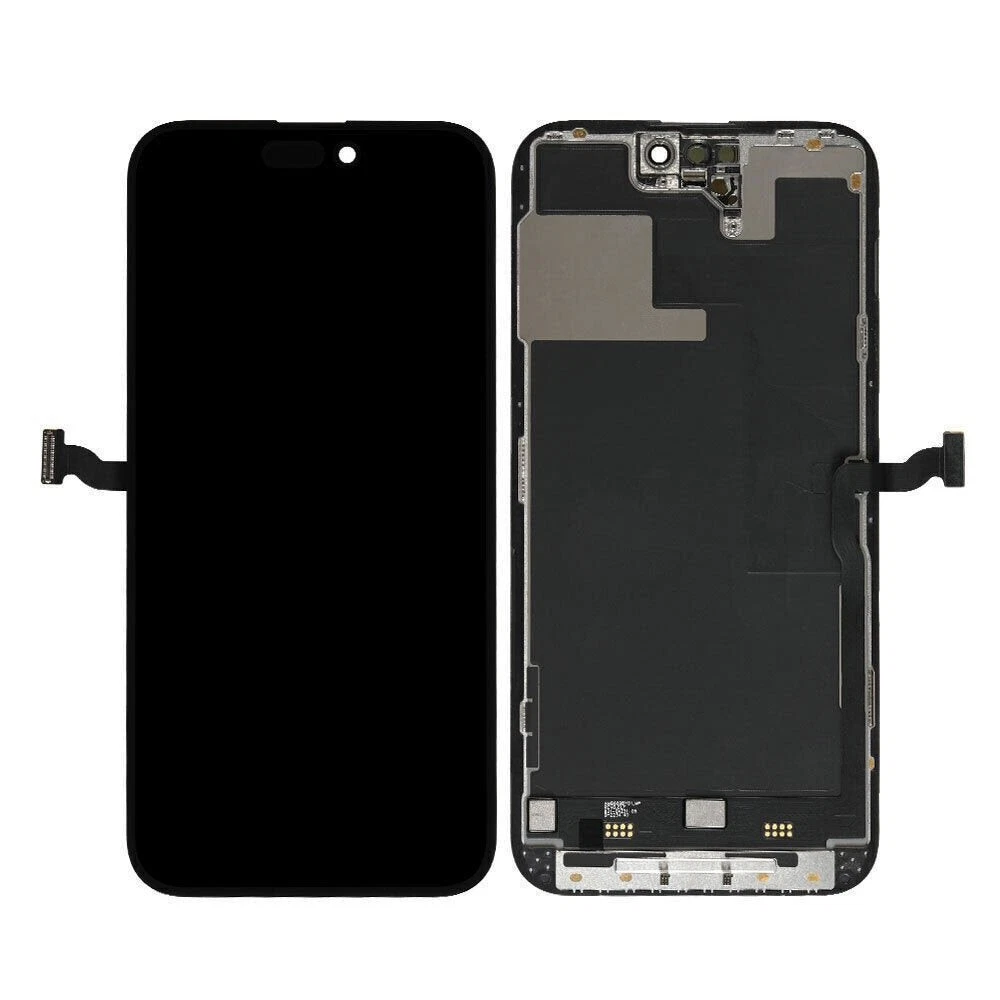
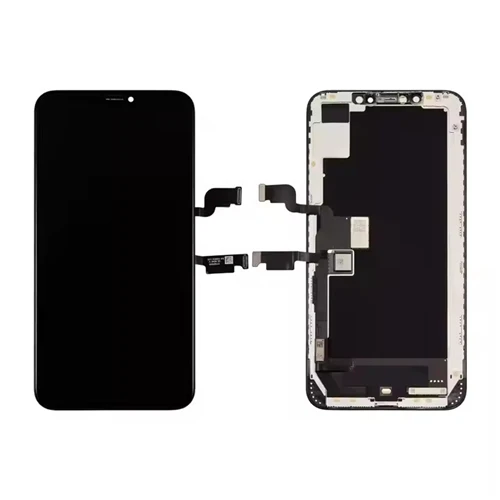
Both the display and touch systems depend on physical pathways to communicate with the logic board. Display data, touch data and power all travel through flex cables and connectors between the screen assembly and the rest of the device. Driver components sit along this path, controlling pixel output and processing touch signal changes, and the logic board coordinates everything with the device's software.
This physical dependency has direct B2B implications. Flex cable damage - from a fold, a crease, or rough handling - can cause intermittent or total failure of display or touch function. Connector damage from improper seating during installation produces the same kind of unpredictable fault. This is why shipping protection, careful installation, and avoiding excess pressure on the assembly matter as much as the quality of the panel itself. A screen that fails intermittently after installation is often a signal-path issue rather than a panel defect.

How Hardware and Software Work Together?
The screen's hardware handles two jobs - producing the display and detecting touch. The device's software layer handles everything after that: interpreting touch coordinates as gestures, rendering what the display shows, and coordinating with sensors and other components elsewhere in the device.
Some display-related behaviors are influenced by more than the screen itself - the specific model, the original screen's calibration data, the software version, and the repair process used during installation can all play a role. A screen powering on and responding to touch doesn't automatically mean every related function is behaving exactly as it did with the original screen.
This is particularly relevant to two functions that are commonly misunderstood in the replacement-screen market. Face ID depends on sensor components paired to the original device, not on the replacement screen itself - a replacement screen does not restore or guarantee Face ID, and damage to related components during installation can affect it. True Tone may or may not continue working after a screen replacement, depending on the specific model, the original screen's data, the software version, the programming tools used, and the installation process - it isn't something a given screen type automatically supports or automatically loses.
What Determines Replacement-Screen Performance?
| Factor | What It Can Affect | What Buyers Should Verify |
|---|---|---|
| Panel type (LCD/OLED) | Brightness, black level, color rendering | Written spec matches intended technology |
| Display driver | Image accuracy, consistency | Stable display across a full test cycle |
| Touch layer | Touch response, multi-touch accuracy | Full-surface and multi-touch testing |
| Flex cable | Reliability, intermittent faults | Visual inspection, stress-free handling |
| Connector | Signal stability | Correct seating, no bent pins |
| Calibration | Color accuracy, brightness consistency | Sample comparison against spec |
| Assembly quality | Overall durability | Fit, gaps, adhesive quality |
| Frame fit | Installation time, cosmetic result | Frame alignment with housing |
| Packaging | Transit damage risk | Protective packaging on arrival |
| Installation | Functional outcome | Trained technician, correct procedure |
| Batch consistency | Unit-to-unit variation | Reference sample vs. incoming batch |
Why a Screen That Turns On May Still Fail Inspection?
A working display is the minimum bar, not the finish line. A screen can:
- Display an image but have dead pixels
- Display an image but at insufficient brightness
- Display an image but show visible Mura
- Respond correctly to touch in the center but fail at the edges
- Respond correctly to single-touch but fail multi-touch gestures
- Work correctly out of the box but develop intermittent connection issues
- Pass as a sample but show inconsistency once a bulk order arrives
Each of these can happen independently of the others, which is why a single "does it turn on" check isn't a quality check at all.
Replacement Screen Function and Quality Check Table
| Screen Function | What It Does | Possible Failure | What Buyers Should Test |
|---|---|---|---|
| Image display | Renders the visual output | No display, lines, flickering | Full-screen image test across colors |
| Brightness | Controls light output | Dim output, uneven brightness | Brightness at multiple screen zones |
| Color | Renders accurate hues | Color shift, inaccurate white balance | Compare against a reference sample |
| Touch response | Detects finger contact | Ghost touch, dead zones, delay | Full-surface tap test |
| Multi-touch | Detects multiple contacts | Fails with 2+ fingers | Pinch/zoom and multi-finger gesture test |
| Display uniformity | Consistent look across the panel | Mura, patchy brightness | Solid-color screen at multiple brightness levels |
| Flex and connector | Carries signal and power | Intermittent faults | Visual inspection, gentle flex test |
| Fit and assembly | Physical integration with device | Gaps, poor alignment | Dry-fit check before final adhesive |
For the complete step-by-step testing procedure and pass/fail criteria, see how to test an iPhone screen before installation.

What B2B Buyers Should Confirm Before Ordering?
- Exact iPhone model
- LCD, OLED, or a specific screen construction
- Written product specification
- Display test criteria
- Touch and multi-touch test criteria
- Brightness and color criteria
- Dead-pixel policy
- Batch identification
- Availability of representative samples
- Packaging
- Warranty terms
- RMA requirements
- Sample-to-bulk consistency guarantees
There's no single unified industry standard covering all of these - confirming them in writing with each supplier is the only reliable way to know what you're actually getting.
Common Misunderstandings
"A screen works if it turns on." Powering on confirms the display circuit functions - it says nothing about touch, brightness, color accuracy, or uniformity.
"Touch works by detecting finger pressure." Capacitive touchscreens detect changes in an electrical field caused by a conductive finger, not physical pressure.
"All iPhone screens work the same way." LCD and OLED produce images through different mechanisms, and construction varies further within each category.
"OLED automatically means better quality." OLED is a technology category. Brightness, color accuracy and uniformity still depend on the specific panel and manufacturing quality.
"The replacement screen controls Face ID." Face ID depends on sensor components tied to the original device, not on the screen itself.
"Products with the same grade name have the same specifications." Grade labels aren't standardized across suppliers - the same name can describe different actual products.

Frequently Asked Questions
How does an iPhone screen display color?
Each pixel is made up of red, green and blue subpixels. Varying the intensity of each subpixel produces the full range of colors shown on screen.
How does an iPhone touchscreen detect a finger?
It monitors a capacitive field across the touch layer. A finger disturbs that field on contact, and a touch controller calculates the coordinates of the disturbance.
Does an iPhone touchscreen detect pressure?
No. Standard capacitive touchscreens detect changes in electrical capacitance, not physical pressure.
What is the basic difference between LCD and OLED operation?
LCD pixels block or pass light from a separate backlight. OLED pixels generate their own light directly, with no backlight required.
Why can a screen display normally but have touch problems?
Display and touch run on separate systems within the same assembly. A fault in one doesn't necessarily affect the other, which is why both need to be tested independently.
What should wholesale buyers test before ordering replacement screens?
At minimum: display function, brightness, color accuracy, uniformity, dead pixels, full-surface touch response, multi-touch, and flex cable/connector condition - ideally verified on a representative sample before committing to a bulk order.
Conclusion
An iPhone screen combines two systems working side by side: a display system that produces images, and a capacitive touch system that detects input. LCD and OLED generate that image in different ways, flex cables and connectors carry the signals between components, and software interprets what the hardware reports. None of this guarantees that a screen powering on is a screen that's passed inspection - brightness, color, uniformity, touch response and connection stability all need to be checked independently, on both samples and incoming batches.
For a closer look at what's actually inside a screen assembly, see What Is an iPhone Screen?. To compare LCD and OLED on cost, structure and buying considerations, see OLED vs LCD iPhone Screens. For the full testing procedure covered briefly above, see how to test an iPhone screen before installation. You can also browse available replacement screen options for your target models, or request a product catalog or sample recommendation based on your model list and target quality level.
This guide is part of The Ultimate Guide to iPhone Screens: Types, Features & Buying Tips.