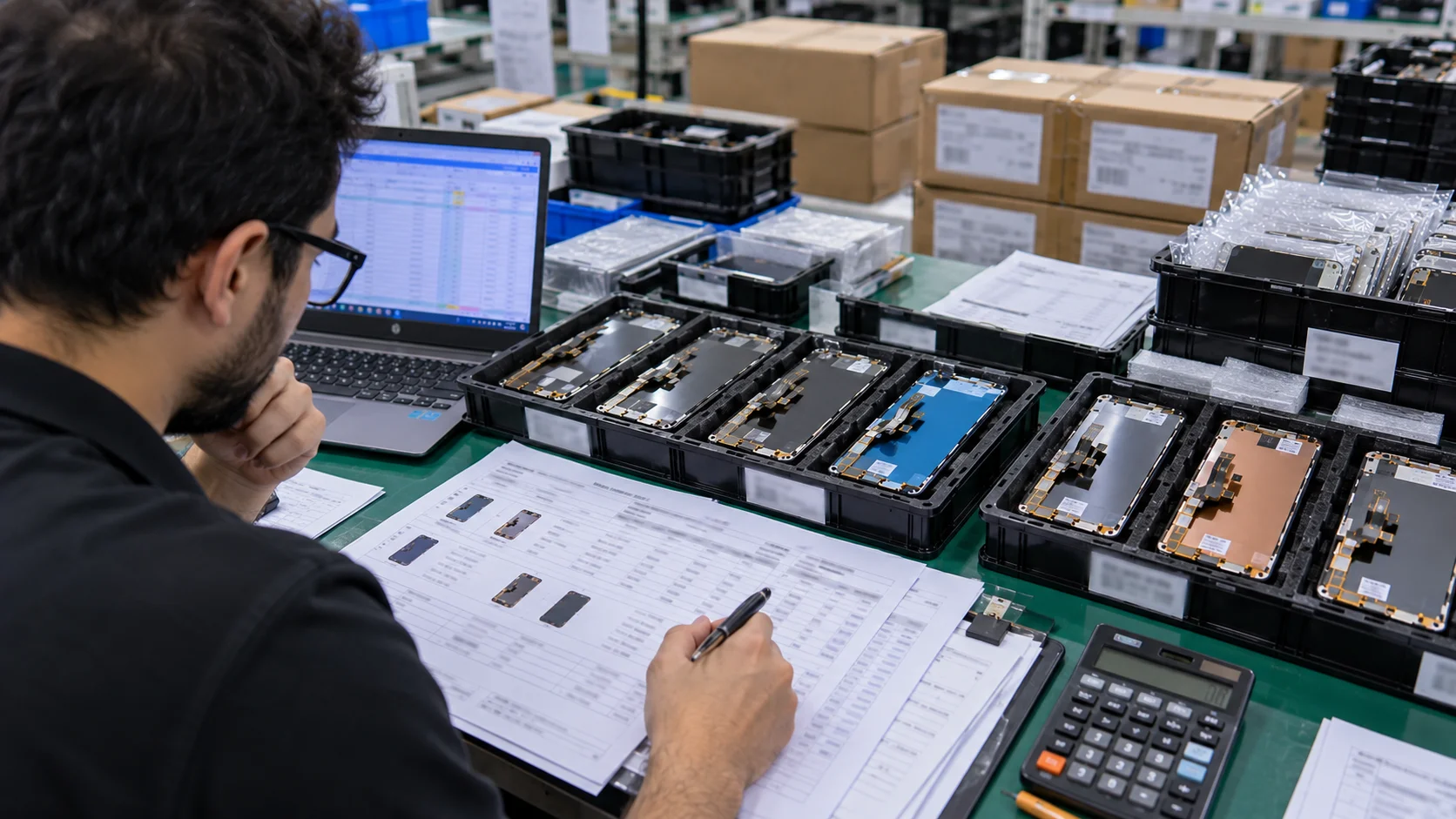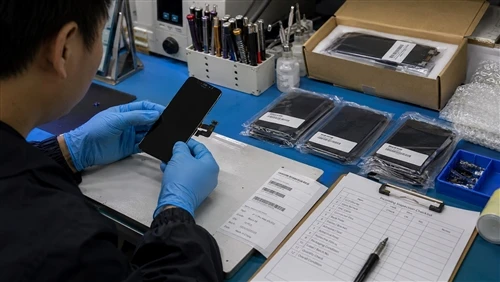
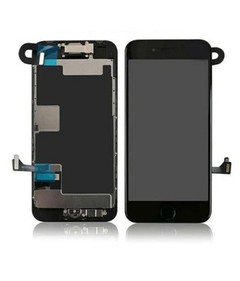
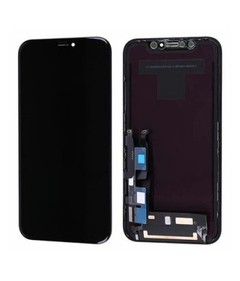
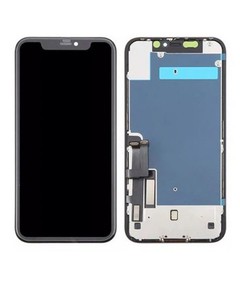
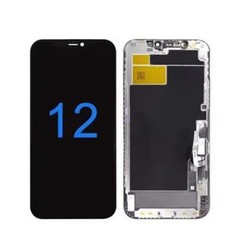
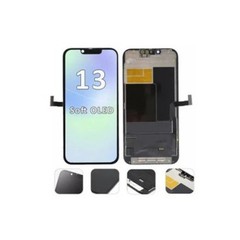
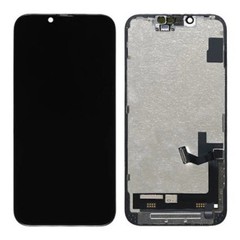
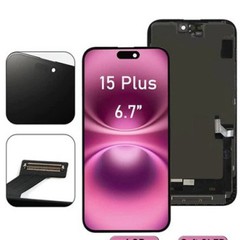
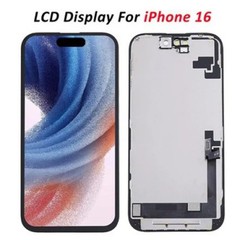
Touch drift after an iPhone 11 screen replacement is one of the most common - and most argued-about - complaints in the repair industry. The repair shop blames the screen supplier. The screen supplier says it was a workmanship issue. The customer just wants their phone to work. After years of handling warranty returns and batch QC disputes from both sides of that conversation, here's the complete picture.
Before we get into the causes, let me define the symptom properly, because "touch drift" is used to describe two different problems that have different solutions.
Ghost touch is when the screen registers inputs that nobody made - taps or swipes happening on their own, particularly at the top or along the edges of the screen. Touch offset is when you tap one location and the registration lands somewhere else - keyboard letters are off, or you have to aim above a button to activate it. Both can appear after a screen replacement, and both have distinct root causes. This guide covers both.

Cause 1: Flex cable connector not fully seated
This is the single most common cause of post-replacement touch issues, and it sits at the intersection of screen quality and installation process. The digitiser flex cable on the iPhone 11 connects via a ZIF connector on the logic board. If the connector isn't fully and evenly seated - either because the screen shipped with the flex at a slightly off angle, or because the technician didn't press both sides down evenly - you'll get intermittent touch loss, ghost touch along one edge, or complete touch failure that comes and goes with pressure or temperature.
How to diagnose: With the phone assembled but the rear case slightly open, apply gentle pressure to the digitiser connector area with a plastic spudger while the screen is on. If the touch behaviour changes - improves or worsens - under pressure, it's a seating issue. Re-open and reseat properly. If the problem persists after careful reseating, the flex cable or connector on the screen itself is defective. Return the unit.
In our QC process, we flex-cycle each screen's connector five times before shipment and pressure-test the seated position at the end. If you receive a screen from any supplier where the connector feels stiff or sits at an angle out of the box, flag it before installation - don't assume it'll settle.
Cause 2: Earpiece mesh or proximity sensor bracket not reinstalled correctly
This one surprises technicians who haven't encountered it before. The iPhone 11 has a proximity sensor and ambient light sensor positioned behind the earpiece grille, seated in a bracket that transfers over from the old display assembly to the new one. If this bracket is misaligned - or if the thin foam pad between the proximity sensor and the display panel is missing or displaced - you can get ghost touch in the upper third of the screen, especially when the phone is held near the ear during a call.
How to diagnose: Does the ghost touch occur specifically during phone calls, or whenever the top edge of the phone is covered or pressed? That's your signal. Open the phone, confirm the proximity sensor bracket is seated correctly, and check that the foam pad is still in position between the sensor and the glass. It's a fifteen-minute fix once you know to look for it - and it has nothing to do with the screen itself.
Cause 3: Digitiser controller IC calibration issue
The touch digitiser on iPhone 11 aftermarket screens uses a third-party touch controller IC - typically from Goodix or Synaptics - that needs to be calibrated to the correct coordinate grid for that specific panel size. Lower-quality manufacturers skip this step or apply the same firmware configuration across multiple panel dimensions, which produces a systematic touch offset: every touch registers a few millimetres above, below, or to the side of the actual tap point, consistently, across the entire screen surface.
How to distinguish this from a connector problem: The offset is consistent across the whole screen, not localised to one edge or corner. It doesn't change when you reseat the connector. And critically, it was present from the very first moment the screen powered on - it didn't develop over time.
This is a manufacturing defect with no field fix. The screen needs to be returned, and a reputable supplier will replace it without argument because there is no installation process that can correct a miscalibrated digitiser IC after the fact. We see this issue in roughly 1.2% of lower-tier aftermarket iPhone 11 screens from suppliers who don't run per-unit touch calibration testing. Our factory runs a five-point touch accuracy check on every unit before it ships.
Cause 4: Electrostatic discharge during handling - damage to the digitiser IC
This one is entirely preventable and almost entirely ignored. iPhone 11 screens are sensitive to ESD, specifically at the digitiser controller. A screen handled without an anti-static wrist strap, or on an ungrounded workbench, may develop ghost touch issues within days or weeks of installation - even if it tested perfectly on initial power-on.
The mechanism is subtle. ESD damage to a digitiser IC often doesn't cause immediate, obvious failure. Instead, it degrades the IC's signal integrity over time, which then manifests as intermittent ghost touch that gradually worsens. This is precisely why a screen can pass your bench test on day one and start misbehaving at the two-to-four week mark. By that point the customer has already come back, the conversation is uncomfortable, and the root cause is very difficult to prove.
Prevention: Anti-static mat and wrist strap are non-negotiable. More importantly, touch the grounded mat before each screen you handle - not just once at the start of the session. Ambient humidity below 40% significantly increases ESD risk. If your workshop is in a dry climate or a heavily air-conditioned building, consider a desktop humidifier during dry months.
Cause 5: Old adhesive residue or contamination on the digitiser contact area
When removing a broken screen, technicians typically use isopropyl alcohol to clean the frame and the logic board connector area. If IPA residue - or any other cleaning solvent - is left on the digitiser flex connector tabs or the logic board connector itself, it can create resistive interference on the touch data lines. The result is usually intermittent ghost inputs that are worse shortly after the phone warms up from use, because heat changes the surface resistance of the residue layer.
The fix: Use 99% or higher IPA only - the 70% variety leaves too much water behind. Apply with a lint-free swab, and allow a full sixty seconds of evaporation time before connecting the new screen. If you used any ultrasonic cleaner solution on the logic board, ensure complete rinsing and drying before screen installation.

Quick diagnosis reference
| Symptom pattern | Most likely cause | Responsibility |
|---|---|---|
| Consistent offset across whole screen from first power-on | Digitiser IC calibration (Cause 3) | Screen defect - replace |
| Touch issue at edges only from first power-on | Connector not seated (Cause 1) | Reseat first; replace if it persists |
| Ghost touch only during calls or when top edge is covered | Proximity sensor bracket (Cause 2) | Technician - reinstall bracket |
| Screen fine for 2–4 weeks, then ghost touch develops and worsens | ESD damage to digitiser IC (Cause 4) | Workshop process issue |
| Intermittent ghost touch, worse when phone is warm | Residue on connector (Cause 5) | Re-clean and reassemble |
Pre-installation checklist for iPhone 11 LCD replacement
- Bench test before fitting: Connect the new screen with the phone open and verify touch function, display uniformity, and proximity sensor response before committing the screen to the frame.
- ESD strap on, mat grounded: Not optional - especially in dry weather, air-conditioned environments, or during winter months.
- Clean the logic board connector with 99% IPA: One light wipe, allow sixty seconds to dry fully before connecting.
- Check flex cable angle: The cable should lie flat under zero lateral tension. If it's under any strain when the phone is assembled, progressive connector failure is a matter of when, not whether.
- Reinstall the proximity sensor bracket before closing: Confirm it's fully seated in the correct orientation with the foam pad in place.
- Full touch test after assembly: Four corners, all edges, keyboard accuracy - before the phone goes back to the customer
If you've worked through this checklist and are still seeing touch behaviour you can't explain, contact us with the specific symptom pattern and the screen model. We can usually identify the root cause from a description and advise whether it's a screen issue we should replace or a process variable to address on your end.