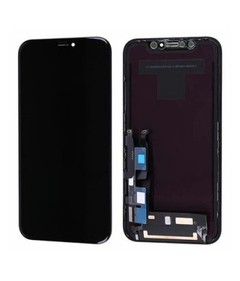
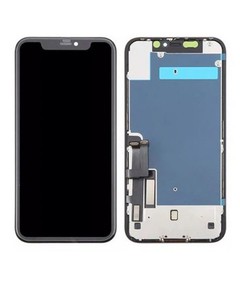
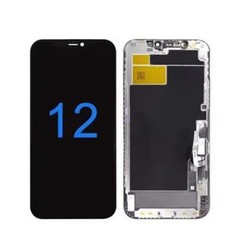
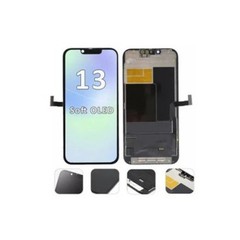

How to Identify the Correct iPhone Model Before Ordering a Replacement Screen?

Ordering the correct replacement screen means confirming the complete iPhone model, its A-number, and the supplier's product code together - not any one of them alone. Most wrong-screen orders don't start with someone misjudging screen size. They start earlier: a customer leaves out "Pro" or "Plus," a quote gets written from memory instead of from the device, or a warehouse label gets matched to the wrong SKU. This guide gives repair shops, wholesalers, and purchasing teams a repeatable process for confirming the exact model before a quote is written, a part is picked, or a screen is installed.
Quick Answer: How Do You Identify the Correct iPhone Model?
- Check the model name and A-number in Settings when the device powers on.
- If the device cannot start, use verified physical or business records instead.
- Confirm the complete model suffix - Plus, Mini, Pro, Pro Max, or SE - not just the generation number.
- Match the confirmed model against the supplier's current compatibility chart.
- Confirm the supplier SKU, screen technology, and frame option together - not separately.
- Test the part before final installation where the order or repair history calls for it.
Screen size and front-facing appearance can narrow the possibilities, but neither can confirm a specific replacement-screen SKU on its own.
What Does "iPhone Screen Model" Actually Mean?
"iPhone screen model" is shorthand for several pieces of information, each playing a different role in confirming the correct part.
| Identifier | What It Identifies | Where It May Be Found | Can It Confirm the Screen Alone? |
|---|---|---|---|
| Marketing model name | The general device line (e.g., iPhone 14 Pro) | Settings, packaging, customer description | No - suffixes are easy to omit |
| Model number / A-number | A more specific device version | Settings, device housing | No - one marketing name can map to more than one A-number |
| Serial number / IMEI | The individual device's unique identity | Settings, device housing | No - used for service lookups, not compatibility, and should not be shared publicly |
| Supplier SKU / product code | The supplier's own inventory and product identifier | Supplier catalog, compatibility chart | No - must be cross-checked against the actual device model |
Treating any single row in this table as sufficient on its own is the most common source of wrong-screen orders.
Method 1 - Check the iPhone Model in Settings
Open Settings → General → About. The Model Name field shows the marketing name (for example, "iPhone 14 Pro"). Next to Model Number, the screen first shows the part number; tapping that field switches the display to the A-number - the identifier that matters for parts matching.
For purchasing purposes, record:
- The full model name, including any Plus, Mini, Pro, Pro Max, or SE suffix
- The A-number, once revealed by tapping the Model Number field
- The capacity, only where it affects the specific order
Send the supplier a short, typed message - exact model name, A-number, required screen grade, and frame requirement - rather than a screenshot, which is easier to misread and slower to process.

Method 2 - Use the Model Number or A-Number
The A-number identifies a specific device version, but it doesn't map one-to-one with replacement-screen SKUs. One marketing model name can correspond to several A-numbers across regions, since Apple issues separate A-numbers for different radio-band or regional configurations - not for different screens. Don't assume a different A-number always means a different screen, and don't assume every A-number under one marketing name shares the same one. Either way, confirm against the supplier's compatibility chart.

Method 3 - Identify the Model When the iPhone Will Not Turn On
A non-functional device removes the easiest identification path, but several sources can still help narrow - and sometimes confirm - the model:
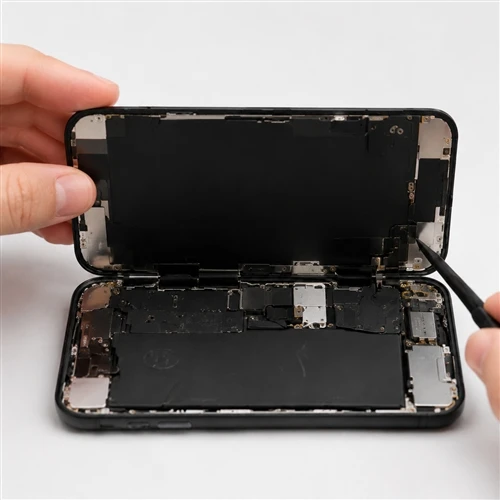
The model number etched inside the device: on the back panel for iPhone 7 and earlier, inside the SIM-tray slot for iPhone 8 and later models with a tray, or inside the USB‑C/Lightning port on models without one
- Housing design, camera layout, and dimensions
- Original packaging or purchase records
- Repair intake tickets or asset-management records
- Trusted diagnostic tools or supplier technical support
These work best in combination - appearance narrows the range of candidates, but the physical model number is what actually confirms it.

Why Screen Size Alone Is Not Enough?
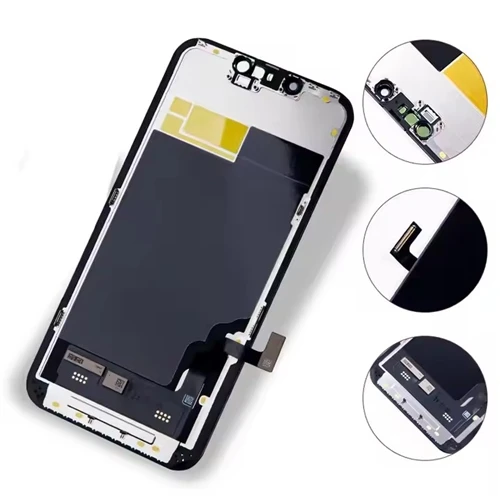
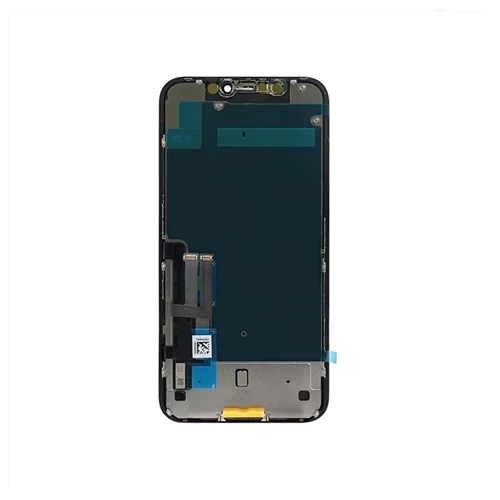
Two iPhones can share a similar or identical stated screen size while using entirely different screen assemblies - connector type, flex-cable layout, frame design, and sensor-area construction can all differ even when the visible dimensions match. A product photo showing a similarly shaped display isn't evidence of compatibility, and neither is a supplier description that only lists screen size. Size narrows the candidates; it doesn't confirm compatibility.

How to Distinguish Standard, Plus, Mini, Pro and Pro Max Models?
Losing the model suffix is one of the most frequent causes of wrong-screen orders, and it can happen at any point in the chain - from the customer counter to the quotation to the warehouse pick.
| Model Label | What Buyers Must Confirm | Common Ordering Risk |
|---|---|---|
| Standard | Full generation number and suffix absence | Confused with Plus if the suffix is dropped in conversation |
| Plus | Explicit "Plus" confirmation | Quietly assumed to be Standard when written from memory |
| Mini | Generation-specific confirmation | Confused with a different generation's Mini |
| Pro | Explicit "Pro" confirmation | Confused with Pro Max on quotes with similar SKU names |
| Pro Max | Explicit "Pro Max" confirmation | Shortened to "Pro" in verbal orders or chat messages |
A quotation, intake form, or SKU name that abbreviates or drops the suffix is a common failure point - not because the underlying part numbers are wrong, but because the abbreviation reintroduces ambiguity the rest of the process can't recover from.
Check the Original Display Technology
Confirming the exact model only answers "which screen fits." It doesn't answer which display technology - LCD or OLED - that model originally shipped with, which affects product options, repair positioning, and customer expectations. Don't assume the technology from a device's release year alone: a single generation's lineup can mix LCD and OLED across its standard, Plus, Pro, and Pro Max variants, so each exact model needs its own confirmation.
Aftermarket LCD and In-Cell LCD options exist for some originally OLED devices, but choosing one doesn't change what the device shipped with, and it doesn't mean the aftermarket option matches the original in display behavior, structure, or power draw. A closer side-by-side of OLED vs. LCD, In-Cell LCD vs. OLED, and Hard OLED vs. Soft OLED options is worth a dedicated read once the original technology is confirmed.
Match the iPhone Model to the Supplier's Screen SKU
Confirming the model and confirming the correct product to buy are two separate steps. Use this sequence before approving the quotation:
- Record the exact model name.
- Record the A-number, where the order requires it.
- Confirm the original display technology.
- Check the supplier's current compatibility chart.
- Confirm the required screen technology or grade.
- Confirm with-frame or without-frame.
- Confirm and record the supplier SKU before approving the quotation.
- Check the current product revision, if relevant.
- Confirm quantity.
- Save the approved quotation or order record for reference.
The device model and the supplier SKU aren't substitutes for each other - one identifies the customer's phone, the other identifies what the supplier will ship. Step 7 is where both confirmations become final: nothing should move to quotation approval until the supplier SKU is on record.

What to Do When the Model Information Is Inconsistent?
Inconsistencies show up more often than most teams expect: Settings information that doesn't match the packaging, a customer description that doesn't match the device, a swapped housing, an old screen label that doesn't match the current device, or a repair record that doesn't match what's in hand.
When this happens:
- Pause the order or installation rather than guessing.
- Pull the most reliable information directly from the device itself.
- Cross-check at least two independent sources before proceeding.
- Escalate to supplier technical support for unresolved cases.
- Keep any customer device information used in this process private.
A Pre-Order Verification Checklist
Device identification
- Exact model name
- A-number
- Full model suffix
- Device condition
- Information source
Product matching
- Supplier SKU
- Display technology
- Product grade
- With-frame or without-frame
- Connector and assembly specification
- Compatibility-chart revision
Order verification
- Quantity
- Sample or bulk order
- Approved quotation
- Warehouse picking code
- Label and packaging information
- Buyer approval
Pre-installation verification
- Packaging label matches the order
- Screen code matches the device
- Connector and flex layout inspected
- Display and touch function tested
- Final installation only after functional verification
How Repair Shops Can Prevent Wrong-Screen Orders?
- Require the full model name - not an abbreviation - on every intake form.
- Add an A-number field for uncertain or model-sensitive orders.
- Record the supplier SKU instead of matching parts from memory.
- Keep an accessible compatibility chart at the counter.
- Require a second check when device information is inconsistent.
- Test the screen before final installation.
- Track wrong-part returns by cause rather than treating every return as a supplier defect.
The right combination depends on order volume and how often uncertain models come through the door - not every shop needs every control.
How Wholesalers Can Reduce Picking and Shipping Errors?
- Use SKUs that are clearly differentiated, not visually similar to each other.
- Retain full model suffixes in product names instead of shortening them.
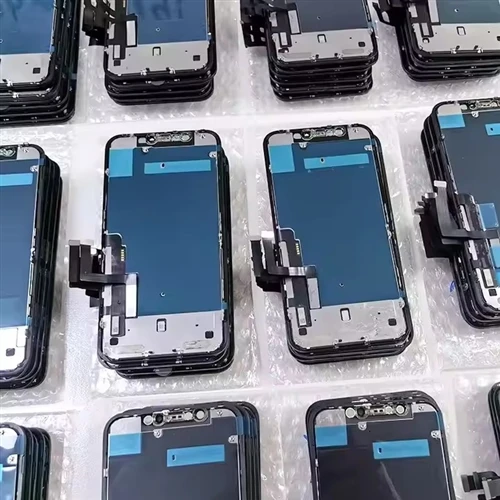
- Show model, grade, technology, and frame option together on the same label.
- Separate similar-looking models on warehouse shelves.
- Use scanning or double verification during picking.
- Maintain a version history for the compatibility chart.
- Track wrong-model, wrong-grade, and wrong-frame returns as separate categories, since each points to a different root cause.
Sales teams benefit from the same identification habits as warehouse staff - a mismatch on the sales side reaches the warehouse looking like a valid order.

Common Model-Identification Mistakes
- Relying on screen size alone
- Judging only from the device's front-facing appearance
- Dropping Plus, Mini, Pro, or Pro Max from the order
- Treating an entire iPhone generation as one screen model
- Assuming similar-looking connectors mean compatibility
- Trusting an old screen's label or the original packaging without checking the device itself
- Confusing Apple model numbers with supplier SKUs
- Assuming regional A-number differences always mean a different screen - or always mean the same one - without checking the compatibility chart
- Sharing full IMEI or serial-number information in public channels
Each of these can lead to a wrong quotation, a wrong purchase, a warehouse picking error, a failed installation, rework, a return, or an RMA dispute - often more than one at once.
FAQ
How do I identify the exact iPhone model for a replacement screen?
Start with Settings → General → About and record the full model name and A-number. If the device won't start, use verified physical details, packaging, or repair records instead, then confirm against the supplier's compatibility chart.
Where can I find the iPhone model number?
In Settings → General → About, tap the Model Number field to switch from the part number to the A-number. On a device that won't power on, the number is etched on the back panel (iPhone 7 and earlier), inside the SIM-tray slot (iPhone 8 and later with a tray), or inside the USB-C/Lightning port (models without a tray).
Is an Apple model number the same as a screen part number?
No. The Apple model number identifies the device; the screen part number or SKU is defined by the supplier and must be matched to the device model separately, not assumed from it.
Can two iPhones with the same screen size use the same replacement screen?
Not necessarily. Screen size is one factor among several - connector type, flex-cable layout, frame design, and display technology can all differ even when the stated size is the same.
Can I identify an iPhone model if the phone will not turn on?
Often, yes, using the etched model number, packaging, purchase records, or repair history in combination. No single source is conclusive on its own - cross-checking two or more confirms the model.
Is it safe to send a supplier a full iPhone IMEI?
Full IMEI and serial numbers shouldn't be shared in public channels. If a supplier genuinely needs this information, collect it through a private, secure form or support channel rather than a public message or comment.
Not Sure Which Screen Matches Your Customer's iPhone?

Send us the complete model name, A-number, preferred screen grade, and frame requirement. Our team will verify the compatible product and supplier SKU before you place the order.