

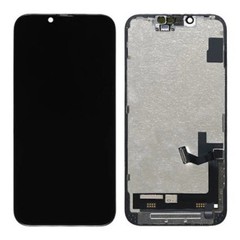

As a reputable supplier of iPhone 8 LCD screens, I often encounter various questions from customers, one of the most frequent being whether the iPhone 8 LCD screen supports mirroring to an external display. In this blog post, I'll delve into this topic comprehensively, exploring the technical aspects, available methods, and limitations of mirroring the iPhone 8 LCD screen content to an external display.
Understanding Screen Mirroring
Screen mirroring, also known as screen casting or screen sharing, is a technology that allows you to replicate the content displayed on your iPhone's screen onto an external device such as a TV, monitor, or projector. This feature is incredibly useful for a variety of scenarios, including presenting slideshows, watching videos on a larger screen, or playing games with a more immersive experience.
Compatibility of iPhone 8 LCD Screen for Mirroring
The iPhone 8, equipped with its high - quality LCD screen, does support screen mirroring to an external display. Apple has incorporated several technologies to enable this functionality, making it accessible and user - friendly for iPhone 8 users.
AirPlay
AirPlay is Apple's proprietary wireless technology that allows you to stream audio, video, and screen content from your iPhone to compatible AirPlay - enabled devices. To mirror your iPhone 8 LCD screen using AirPlay, you need an AirPlay - enabled TV or a device like Apple TV connected to your external display.
Here's how you can use AirPlay to mirror your iPhone 8 screen:
- Ensure Compatibility: Make sure your external device (TV or Apple TV) supports AirPlay. Most modern smart TVs have built - in AirPlay support, and Apple TV is a dedicated device for this purpose.
- Connect to the Same Wi - Fi Network: Both your iPhone 8 and the external device must be connected to the same Wi - Fi network. This is crucial for establishing a stable connection for screen mirroring.
- Initiate Screen Mirroring: Swipe up from the bottom of your iPhone 8 screen to open the Control Center. Tap on the "Screen Mirroring" icon. Select your AirPlay - enabled device from the list of available devices. Once connected, your iPhone 8 LCD screen content will be mirrored on the external display.
Lightning to HDMI Adapter
If you don't have an AirPlay - enabled device, you can still mirror your iPhone 8 LCD screen using a Lightning to HDMI adapter. This adapter allows you to connect your iPhone 8 directly to an HDMI - equipped external display, such as a TV or monitor.
Here's the process of using a Lightning to HDMI adapter:
- Purchase a Compatible Adapter: There are various Lightning to HDMI adapters available in the market. Make sure to choose one that is compatible with the iPhone 8.
- Connect the Adapter: Plug the Lightning end of the adapter into your iPhone 8 and the HDMI end into your external display.
- Adjust Display Settings: Once connected, your iPhone 8 should automatically detect the external display. You may need to adjust the display settings on your iPhone 8 to optimize the screen mirroring experience.
Limitations of Screen Mirroring on iPhone 8
While the iPhone 8 LCD screen supports screen mirroring, there are some limitations that users should be aware of.
Video Quality
When mirroring your iPhone 8 screen, the video quality on the external display may not always match the quality on the iPhone 8 itself. This is because the mirroring process involves encoding and decoding the video stream, which can result in some loss of quality, especially if the Wi - Fi connection is weak or the adapter has limitations.
Compatibility Issues
Not all external displays are compatible with the iPhone 8 for screen mirroring. Some older TVs or monitors may not support AirPlay or may have compatibility issues with the Lightning to HDMI adapter. In such cases, you may need to use additional devices or adapters to make the connection work.
Battery Drain
Screen mirroring can be a resource - intensive process, which can lead to increased battery consumption on your iPhone 8. If you plan to use screen mirroring for an extended period, it's advisable to keep your iPhone 8 connected to a power source.
Our iPhone 8 LCD Screen Offerings
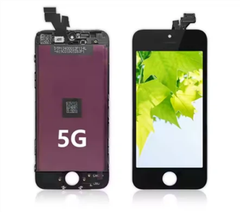
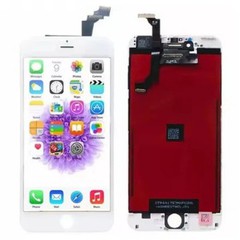
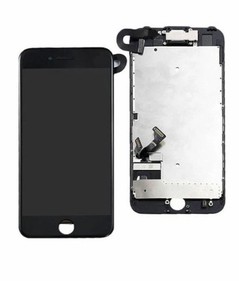
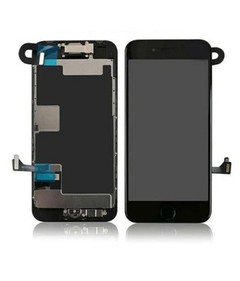
As a leading supplier of iPhone 8 LCD screens, we offer a wide range of high - quality products. Our IPhone 8 OEM LCD Screen Replacement is designed to meet the strictest quality standards, providing a perfect fit and excellent display performance. We also offer IPhone 8 Plus LCD Panels For Suppliers for those looking for larger - sized LCD panels. And if you're in need of a reliable LCD Replacement Supplier For IPhone 8, we have the expertise and inventory to meet your requirements.
Conclusion and Call to Action
In conclusion, the iPhone 8 LCD screen does support mirroring to an external display through AirPlay or a Lightning to HDMI adapter. While there are some limitations, the ability to mirror the screen provides users with a convenient way to enjoy their iPhone 8 content on a larger display.


If you're in the market for high - quality iPhone 8 LCD screens, we invite you to get in touch with us for procurement and negotiation. We are committed to providing the best products and services to our customers. Whether you're a repair shop, a distributor, or an individual in need of a replacement LCD screen, we have the solutions for you.
References
- Apple Support Documentation
- Technical specifications of iPhone 8
- User experiences and reviews from iPhone 8 users


