

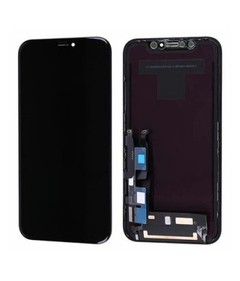
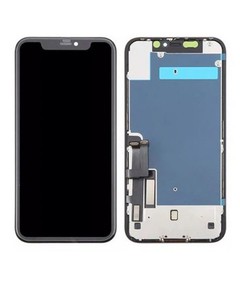
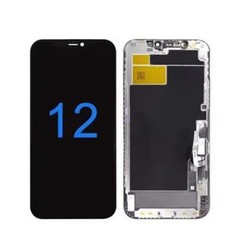
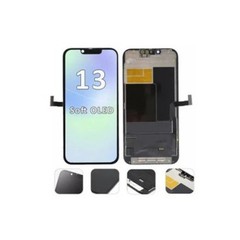
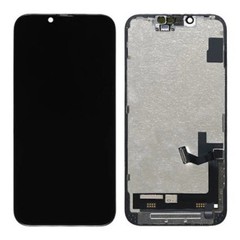
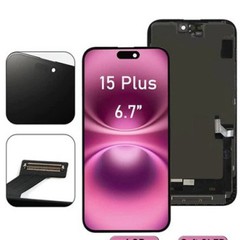
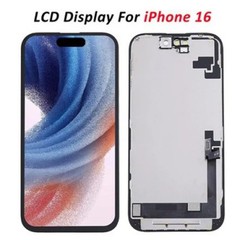

Hey there! As a supplier of iPhone 12 Pro LCD screens, I've seen my fair share of issues with these displays. In this blog post, I'm gonna walk you through how to check the health of your iPhone 12 Pro LCD screen. Whether you're a regular user looking to keep your device in top shape or a repair shop owner sourcing quality replacement parts, this guide will come in handy.
1. Visual Inspection
The first step in checking the health of your iPhone 12 Pro LCD screen is a simple visual inspection. Turn on your phone and look at the screen from different angles. Here's what you should be on the lookout for:


- Dead Pixels: These are tiny dots on the screen that don't light up. They can be black, red, green, or blue. To spot them, you can use a solid - color background. For example, set your wallpaper to a pure white or black image. If you see any dots that don't match the background color, you've got dead pixels.
- Cracks and Scratches: Check the surface of the screen for any visible cracks or scratches. Even small scratches can affect the touch sensitivity and the overall look of the screen. Sometimes, cracks can also lead to more serious issues like liquid leakage over time.
- Discoloration: Look for any areas of the screen that seem to have a different color than the rest. This could be a sign of a problem with the backlighting or the LCD panel itself. Discoloration can appear as yellowish, pinkish, or grayish patches.
2. Touch Screen Responsiveness
The touch screen is one of the most important parts of your iPhone 12 Pro. To test its responsiveness:
- Single - Touch Test: Open a simple app like the Notes app. Tap on the screen to create a new note. Try writing some text using your finger. If the screen doesn't register your taps or if the writing is erratic, there might be an issue with the touch screen.
- Multi - Touch Test: You can also test multi - touch functionality. Open a photo in the Photos app and try to zoom in and out using a pinch - to - zoom gesture. If the screen doesn't respond correctly to this multi - touch gesture, it could indicate a problem.
3. Screen Brightness and Contrast
The brightness and contrast of your screen can tell you a lot about its health.
- Brightness Adjustment: Go to your phone's Settings, then Display & Brightness. Try adjusting the brightness slider all the way up and all the way down. If you notice that the screen doesn't get as bright as it should or if it doesn't dim properly, there could be an issue with the backlighting system.
- Contrast: Look at some high - contrast images on your phone. For example, an image with a lot of black and white areas. If the contrast seems off, like the blacks aren't very dark or the whites aren't very bright, it could be a sign of a problem with the LCD panel.
4. Color Accuracy
Color accuracy is important for a great viewing experience. To check the color accuracy of your iPhone 12 Pro LCD screen:
- Compare with Another Device: If you have another iPhone or a high - quality display device, open the same image on both devices. Compare the colors on your iPhone 12 Pro screen with the other device. If the colors on your iPhone seem different, it could indicate a color calibration issue or a problem with the LCD panel.
- Use Color - Testing Apps: There are several color - testing apps available on the App Store. These apps can display a series of color patterns and help you determine if your screen is displaying colors accurately.
5. Screen Flickering
Screen flickering is a common problem that can be quite annoying. To check for screen flickering:
- Observe in Different Lighting Conditions: Turn on your phone and look at the screen in different lighting conditions, such as bright sunlight and dim indoor lighting. If you notice that the screen flickers or has a strobing effect, it could be a sign of a problem with the display driver or the LCD panel.
- Check for Flickering during Use: Pay attention to the screen while you're using your phone. For example, when you're scrolling through a long page or watching a video. If the screen flickers during these activities, it's definitely something to be concerned about.
Why Choose Our iPhone 12 Pro LCD Screens?
If you've determined that your iPhone 12 Pro LCD screen needs to be replaced, we've got you covered. Our LCD Replacement IPhone 12 and LCD Replacement Parts For IPhone 12 are of the highest quality. We also offer OLED Replacement IPhone 12 Pro Max for those who prefer OLED technology.
Our screens are rigorously tested to ensure they meet the highest standards of quality and performance. We source the best materials and use the latest manufacturing techniques to provide you with screens that are durable, have excellent color accuracy, and high touch sensitivity.
Let's Connect!
If you're interested in purchasing our iPhone 12 Pro LCD screens or have any questions about screen health and replacement, don't hesitate to reach out. We're here to help you find the best solution for your needs. Whether you're a business looking to stock up on replacement parts or an individual looking to fix your phone, we've got the products and expertise to assist you.
References
- Apple Support Documentation
- Industry Reports on iPhone Display Technology
So, that's how you can check the health of your iPhone 12 Pro LCD screen. I hope this guide has been helpful to you. If you have any more questions or need further advice, feel free to leave a comment below.


